How to Set Up Stop Losses and Other Risk Controls on AutoTrader
Learn how to set up take-profit, stop-loss, and trailing stop controls on ZMO's AutoTrader, so your automated strategy protects gains and limits losses without manual monitoring.
LL
Lulu Liu
8 min

ZMO AutoTrader provides traders with sophisticated tools to automate these protections, allowing you to lock in gains and mitigate downside risk systematically.
This guide details how to configure your risk controls effectively.
Setting Up Take-Profit and Stop-Loss Conditions on AutoTrader
To begin, select your preferred trading strategy. We are picking BTC-Bullish as our strategy to get started.
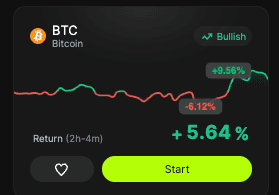
Once you have established your initial investment amount, navigate to the Risk Management module.
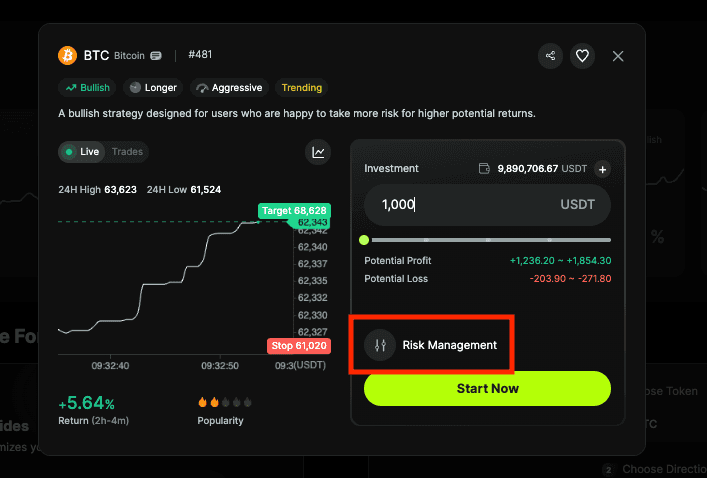
Within this interface, you will encounter two primary options: Take-Profit / Stop-Loss and Trailing Stop.

Given the inherent volatility of cryptocurrency markets, we strongly recommend that all users implement stop-loss parameters for every automated strategy. This ensures that you have predefined protection in place should market conditions deviate from your analysis.
Once you have input your desired profit target and loss limits—for example, a 50% profit target against a 50% stop-loss threshold—simply proceed to launch your strategy. You can review and verify these active risk controls at any time via the ZMO AutoTrader dashboard, located in the upper right-hand corner of the strategy interface.
Setting Up a Trailing Stop on AutoTrader
For traders seeking to capture market upside while protecting against sudden reversals, the Trailing Stop feature is the preferred tool.
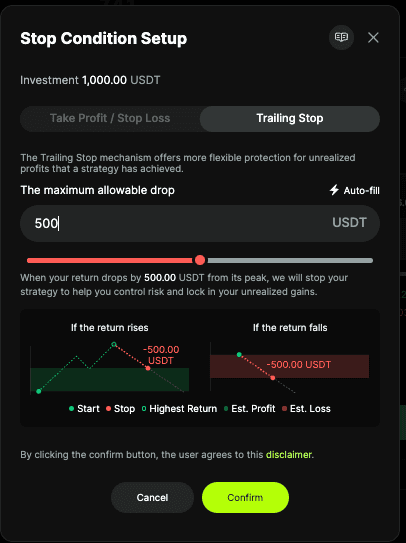
Unlike a fixed stop-loss, a trailing stop is dynamic. It tracks the market's progress, adjusting the exit threshold as the asset price moves in your favor. If your return reaches a specific peak, the trailing stop remains dormant. However, if the market experiences a pullback of a pre-set amount, the strategy will automatically execute to preserve your remaining capital.
Once your strategy is live, you can monitor the status of your trailing stop directly within the “My Portfolio.”
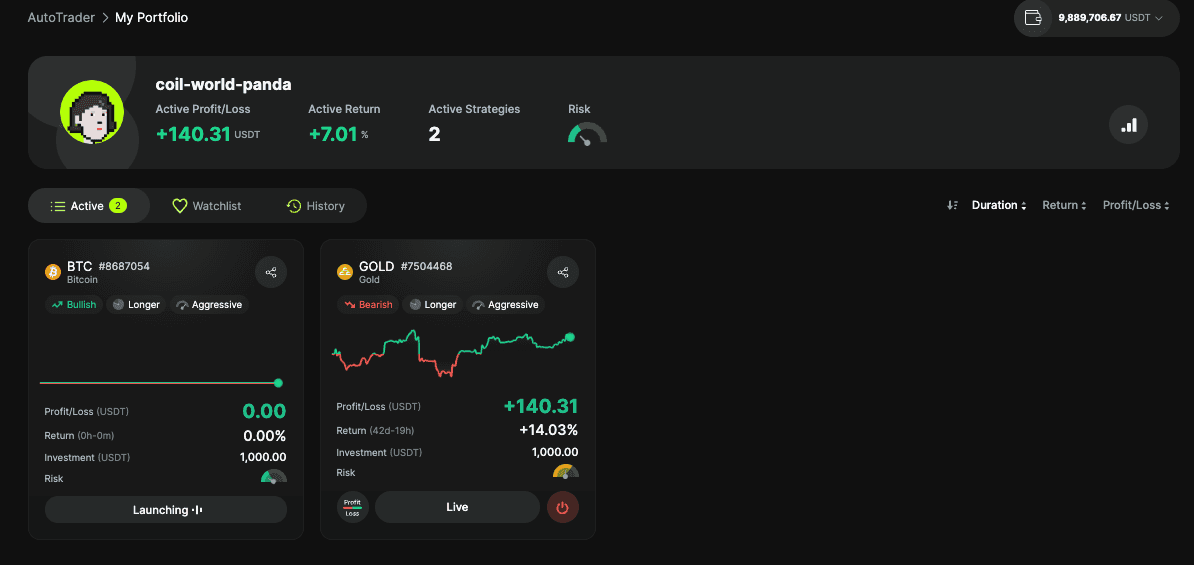
And that’s it, we’ve covered how to set up advanced risk control settings on AutoTrader.


