Steps to Reset 2FA on ZMO
Lost access to Google Authenticator? Learn how to remove and reset 2FA on your ZMO account , or contact ZMO support to verify your identity and regain access within 3–5 business days.
LL
Lulu Liu
8 min

Lost your phone or accidentally deleted your Google Authenticator app?
Don't worry — you can regain access to your ZMO account.
Here’s how.
Remove and reset your 2FA
Log into your ZMO account and go to your Dashboard.
Click Security.
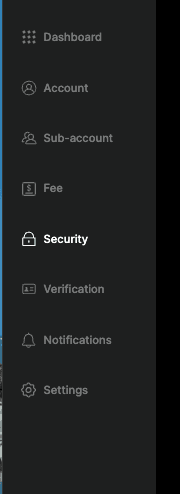
Find the 2FA section and select Remove.

A verification code will be sent to your registered email address. Enter it when prompted to confirm the removal.
Once removed, go back to the Security page and re-enable 2FA to link your new device or authenticator app.
Submit a support request
If you can’t log in at all, you’ll have to email us at support@zmo.com to reset your 2FA credentials.
Our support team will reach out to verify your identity. Have your KYC documents ready — you may be asked to confirm personal details tied to your account.
Once your identity is confirmed, the team will disable 2FA on your account. This process typically takes 3–5 business days.
After receiving confirmation, log in and set up 2FA again with your new device to keep your account secure.
Reminder: After 2FA is disabled, you may not be able to withdraw funds for a short period. This is a standard security measure to protect your account during the reset process.
Pro Tip: Once you're back in, save your 2FA backup codes somewhere safe — like a password manager or a printed copy stored securely. This way, you won't get locked out if you switch phones again.
Keep your account secure
Passwords, withdrawal locks, anti-phishing codes — a few simple steps go a long way.
Any questions? Reach out to support@zmo.com for further assistance.
