How Can I Set Up or Remove 2FA on My ZMO Account?
Learn how to set up or remove Google Authenticator 2FA on ZMO. Note that withdrawal and send functions are disabled for 24 hours after any 2FA changes.
LL
Lulu Liu
8 min

Setting up 2FA is one of the best ways to keep your account secure and under your control.
Here’s how you can get started.
Please log into your ZMO account -> Go to Dashboard -> Security -> Setup 2FA
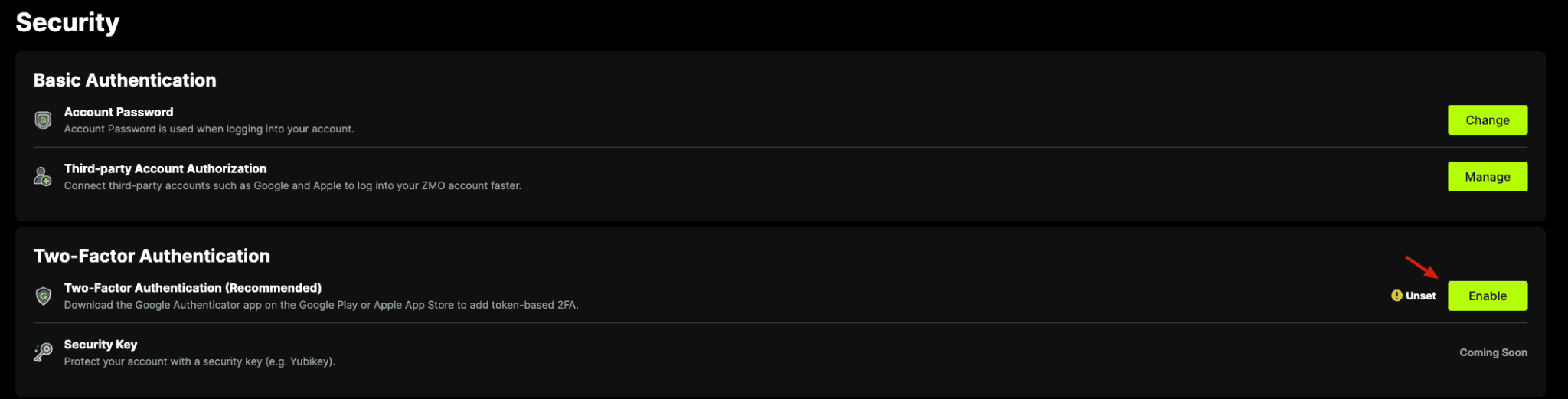
Please download the Google Authenticator app on your device to set up 2FA
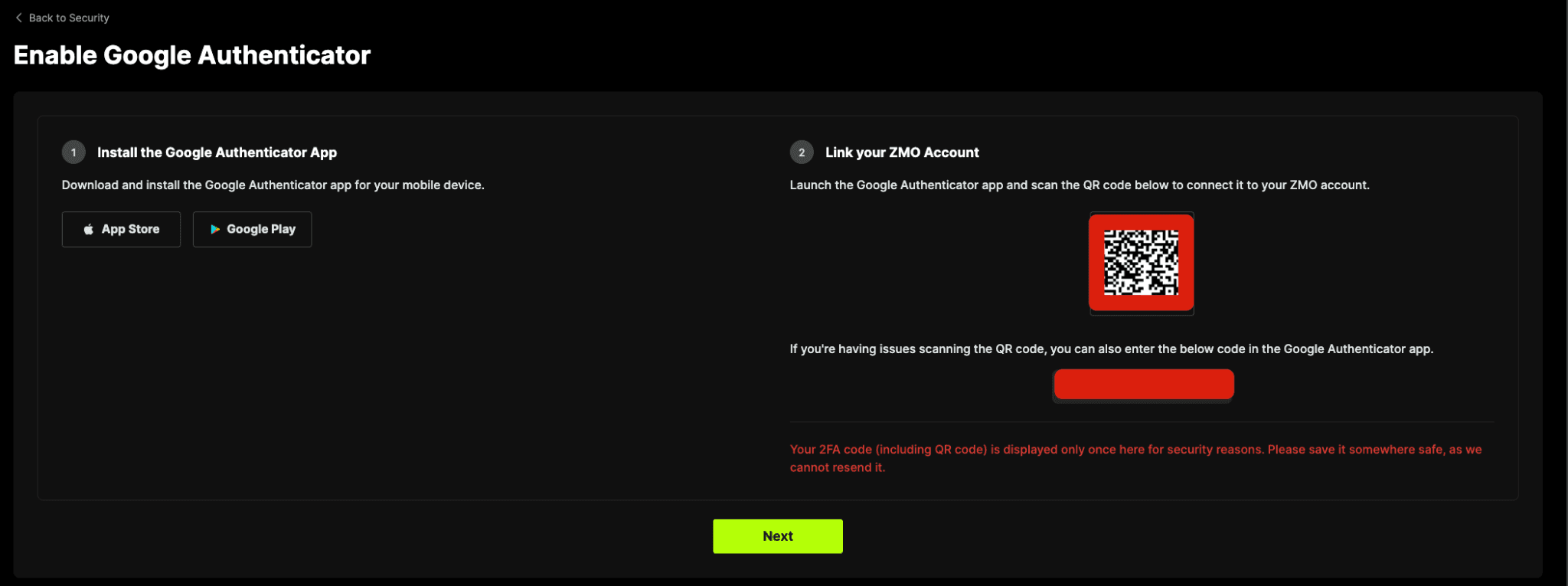
Follow the 2FA setup process and click Enable.
Click “Send code” to receive a verification code. Enter this code in the first field.
Enter your 2FA code from your authentication app in the second field.
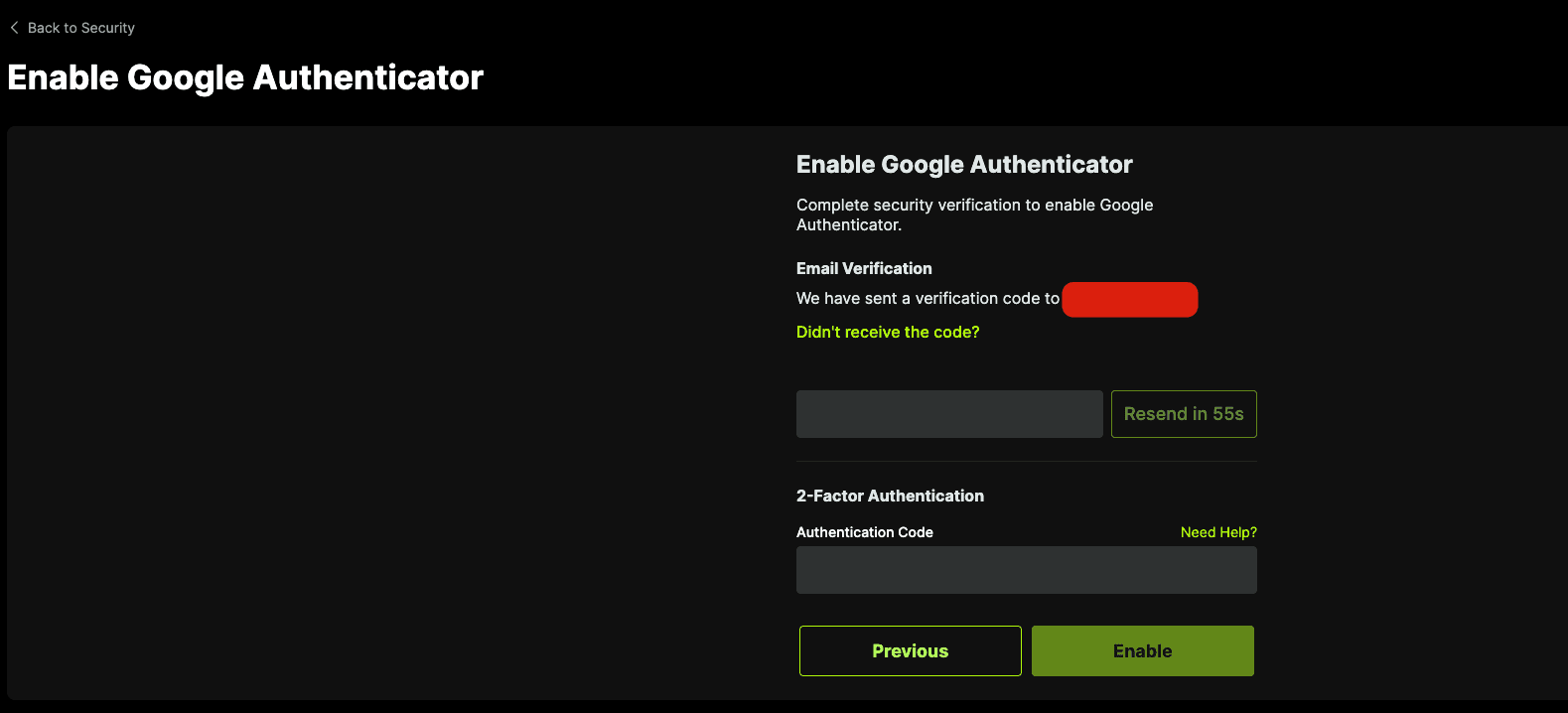
Once the 2FA is enabled, a “Success” pop-up message notification will appear on the page.
How Can I Remove 2FA from my Account?
Sometimes you may run into issues with 2FA and have to disable it. Here are the steps needed:
Please log into your ZMO account -> Go to dashboard -> Security -> Remove
**Note: “Withdrawal” and “Send” functions will temporarily be disabled for 24 hours after you remove your 2FA

1. Click “Send code” to receive a verification code. Enter the code sent to your email address.
2. Enter your 2FA code from the authenticator app.
3. Click “Remove”
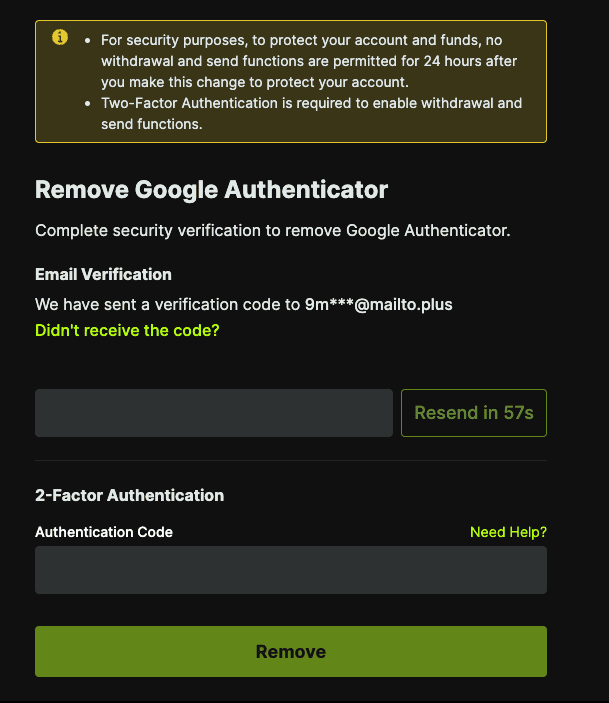
Once you have successfully removed it, you may now log into your ZMO account without having to go through 2FA measures.
Detailed 2FA Setup Guide (Google Authenticator)
Two-Factor Authentication, commonly referred to as 2FA, provides an added measure of security to your ZMO account. It ensures that you—and only you—have the power to access your account by utilizing an authentication code produced by your mobile device.
Once 2FA is activated on your account, you’ll be prompted to input a unique, time-sensitive code every time you sign in or initiate withdrawals.
Steps to Activate 2FA:
Get the Google Authenticator App:
For iOS users: Navigate to the App Store, search for “Google Authenticator”, or click here.
For Android users: Head to Google Play, type in “Google Authenticator” in the search bar, or click here.
For Android users in China: Please click here.
Set up 2FA on ZMO:
Navigate to the ZMO security page.
Select the “Setup 2FA” option to begin the process.
Scan the QR code shown in ZMO by using your phone’s Google Authenticator app to scan the QR code under “Link your ZMO Account”, or copy and paste the code. Then, click “Next.”
Follow the steps on your screen:
First, ZMO will send a One-Time Password (OTP) to your registered email address. Check your inbox and enter that code.
Then, open Google Authenticator, and enter the 6-digit code from the app.
Once both codes are in, tap Enable.
You’ll see a notification on your screen — that means 2FA is now active on your account. From this point on, every time you log in, ZMO will ask for your password and a code from Google Authenticator. Your account is now secure.


