How Can I Verify My Identity (KYC) on ZMO?
ZMO has two verification levels. Complete Level 1 for higher withdrawal limits; Level 2 unlocks fiat services including card and bank transfers. Start in minutes.
LL
Lulu Liu
8 min

What are the Verification Requirements?
You must complete Level 1 (Primary Verification) to access higher deposit/withdrawal limits
You must complete Level 2 (Advanced Verification) to access fiat services
Verification Levels and Access
Feature | Level 0 | Level 1 | Level 2 |
Email / Mobile verification | ✔ | ✔ | ✔ |
Government-issued ID | ✔ | ✔ | ✔ |
Proof of address | ❌ | ❌ | ✔ |
Crypto trading | ✔ | ✔ | ✔ |
Crypto deposits | ✔ (Unlimited) | ✔ (Unlimited) | ✔ (Unlimited) |
Crypto withdrawals | Up to 1,000,000 USDT | Up to 1,000,000 USDT | Up to 3,000,000 USDT |
Credit/debit card purchases | ❌ | ❌ | ✔ |
Bank transfers | ❌ | ❌ | ✔ |
How Can I Start Level 1 (Primary Verification)?
Getting Started on the Web
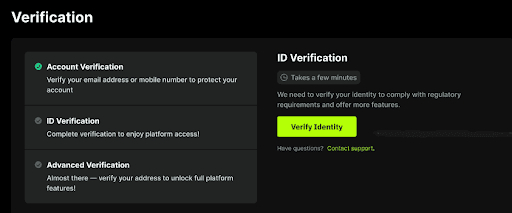
Log into your ZMO account and go to the verification page
Select your profile icon (top right)
Click Verification
By default, you'll land on the Individual Verification page.
You can view your current verification level and withdrawal limits on this page.
Getting Started on the App
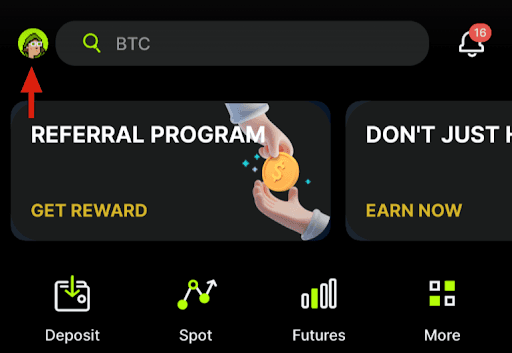
Open the ZMO app
Select your profile icon (top left)
Click Verification to navigate to the Verification page.
Next Steps
Select Verify Identity
Enter your personal information (must match your ID)
Upload your government-issued ID:
This should be a Passport, National ID, or Driver’s License, depending on your selected nationality

Submit a video selfie (liveness check)
Tips:
Ensure images are clear and all details are visible
Use a well-lit environment for the selfie
Verification submissions are usually approved within minutes. If additional checks are required, it may take 1–2 business days.
How Can I Complete Level 2 (Advanced Verification)?
Getting Started on the Web
After completing Level 1:
Log in to your ZMO account and go the verification page
Select your profile icon (top right)
Click Verification
Select Advanced Verification
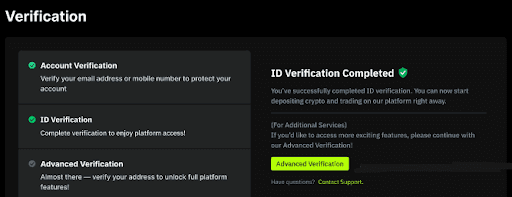
Getting Started on the App
Open the ZMO app
Select your profile icon (top right)
Click Verification to navigate to the Verification page
Select the Advanced Verification option
Verifying Your Residential Address
Upload a valid proof of address
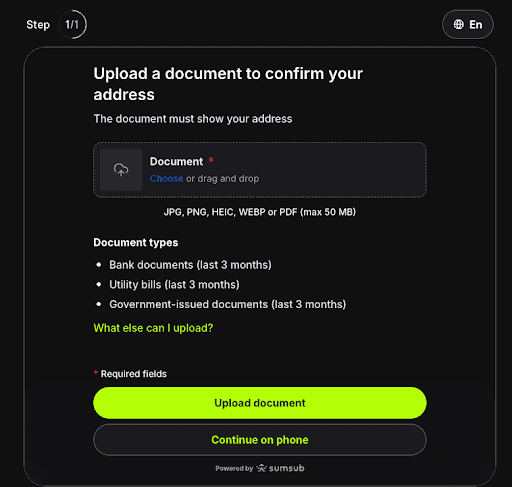
And that’s it!
Verification of your proof of address may take a few days. If we require more details to verify your proof of address, our support team will reach out to you via email.


