How to Make Your First Futures Trade on ZMO
New to futures on ZMO? This step-by-step guide covers funding your futures wallet, selecting a contract, and placing your first long or short position with the right order type.
LL
Lulu Liu
8 min

For those transitioning from spot trading to futures trading, the process requires a precise understanding of margin, leverage, and contract mechanics.
This guide will walk you through the four essential steps to opening your first futures positions on ZMO.
Step 1: Fund Your ZMO Futures Wallet
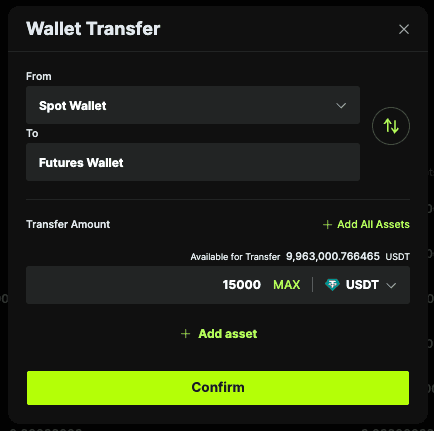
Before entering a position, you must ensure your funds are located in the correct sub-wallet.
Log in to your ZMO account
Navigate to the Assets or Wallet section
Select Transfer
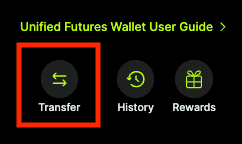
Move your desired amount of USDT (or other supported collateral) from your Spot Wallet to your Futures Wallet
Step 2: Select Your Trading Pair and Contract Type
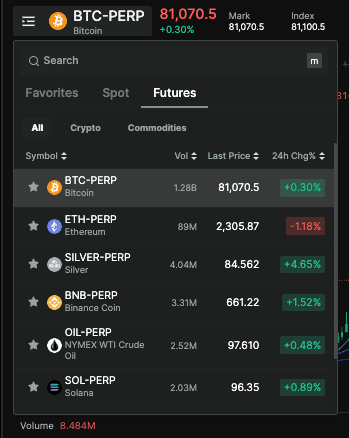
Navigate to the Futures trading interface.

Choose your contract: Common contracts include BTC-PERP or ETH-PERP. In this case, we’ll pick BTC-PERP.
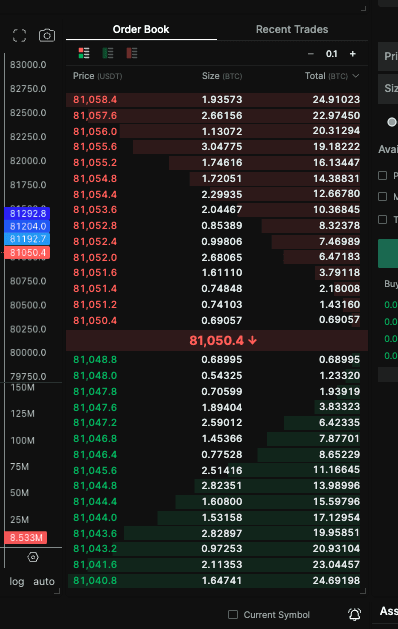
Analyze the Order Book: Check the current market depth by observing the real-time liquidity and spread to ensure it supports your entry strategy.
Step 3: Execute Your Trade (Long or Short)
Decide on your market direction based on your analysis:
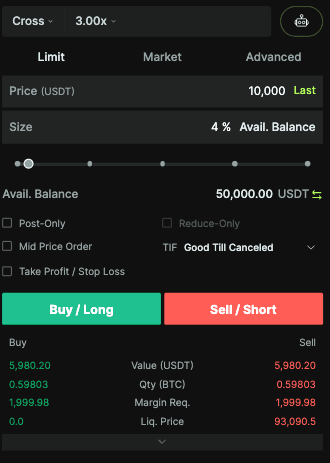
Buy/Long: Select this if you anticipate the asset’s price will rise. In this case, we will use 10,000 USDT worth of margin to trade 50,000 USDT worth of Bitcoin.
Sell/Short: Select this if you anticipate the asset’s price will fall.
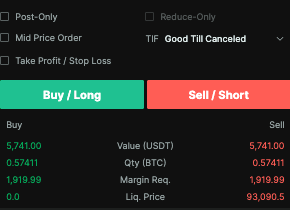
Order Type: Choose a Limit Order to specify the exact price at which you wish to enter or a Market Order for immediate execution at the current best available price.
In this case, we’ll pick a Limit Order with a price of 50,000.
Take-Profit (TP) & Stop-Loss (SL): Always set your TP and SL levels before confirming the trade to automate exit points and protect your capital.
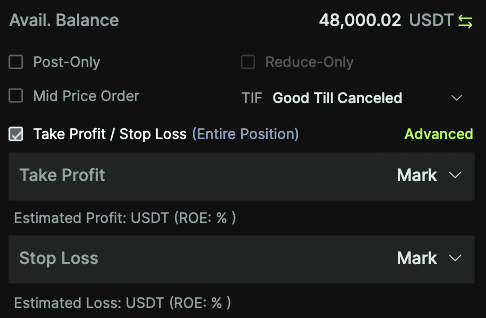
In this particular case, we will skip this part to avoid confusing you, but a tutorial on picking these settings can be found here.
Once you click Buy/Long or Sell/Short, your position will appear in the Positions tab at the bottom of the trading interface, where you can monitor it in real time.



