How to Trade 1-Click Futures on ZMO
1-Click Futures on ZMO makes futures trading as simple as picking a direction — enter an amount, choose Long or Short, set your leverage, and you're in. Start from just $10.
LL
Lulu Liu
8 min

1-Click Futures is a crypto futures feature on ZMO that makes futures trading really, really easy.
Just enter an amount, pick a direction, and go.
If you think Bitcoin is going up, tap Long. If you think it's going down, tap Short. That's it.
Funds come straight from your ZMO wallet. You can close your trade any time or let it run and check back later.
Open 1-Click Futures
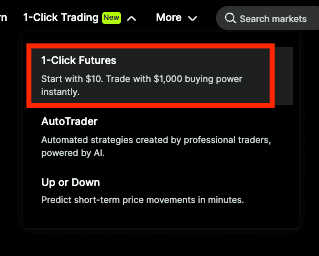
From the top navigation, tap 1-Click Trading, then select 1-Click Futures.
Pick your token and check its price
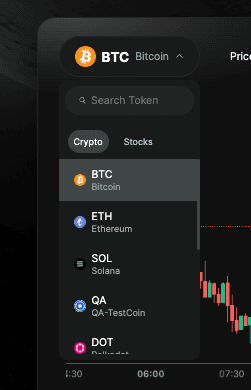
Bitcoin is selected by default. Tap the name to switch to another token.
Enter your amount to invest
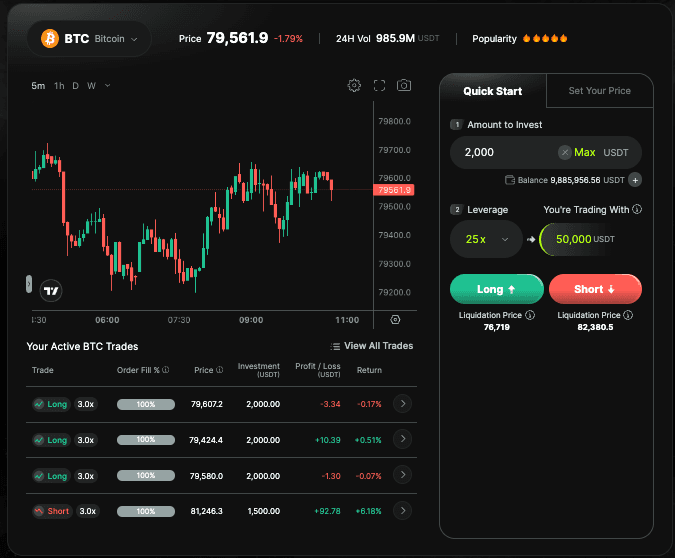
In the Quick Start panel, enter how much USDT you want to enter.
This time, we use 2,000 USDT as an example. Tap Max to use your full balance, or type any amount above the minimum required (0.04 USDT).
Set your leverage
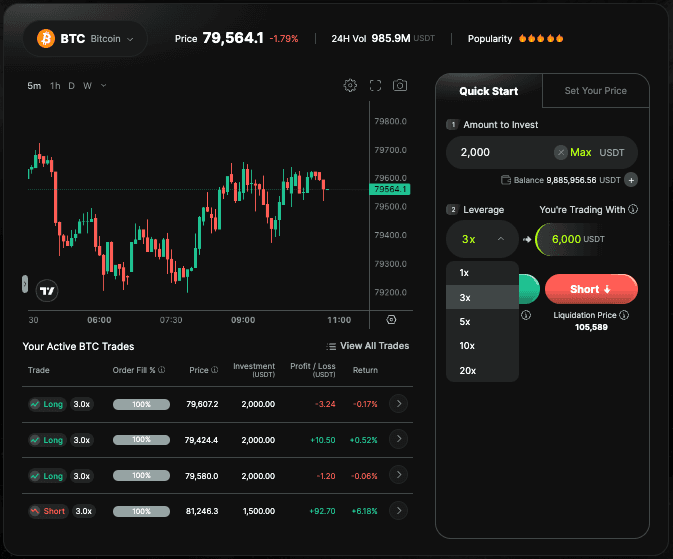
Tap the Leverage dropdown and choose your multiplier. You're trading with section updates instantly to show the total value of your position. For example, by using 2,000 USDT with 3x leverage, your trading power turns into 6,000 USDT.
Choose Long or Short and check the liquidation price first
This is your direction call. Before tapping, read the Liquidation Price shown below each button.
Long: You think the price will go up. You earn if it rises, lose if it falls too far.
Short: You think the price will go down. You earn if it falls, lose if it rises too far.
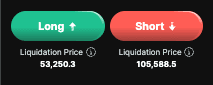
Liquidation Price is what the price has to hit for you to lose your investment. You’ll see that it changes as you increase the leverage. We recommend starting with 2x or 3x leverage when starting out.
In this example, we use 3x leverage.
Review the Trade Confirmation screen
After tapping Long or Short, a confirmation screen appears. Review all four fields before tapping Start Now to open the trade.

Monitor your open trade
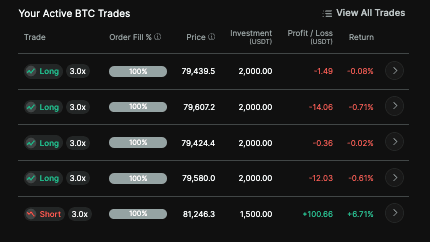
Once confirmed, your trade will be live and appear in Your Active Trades section below the price chart. You'll see live updates on entry price, liquidation price, profit/loss, and return.
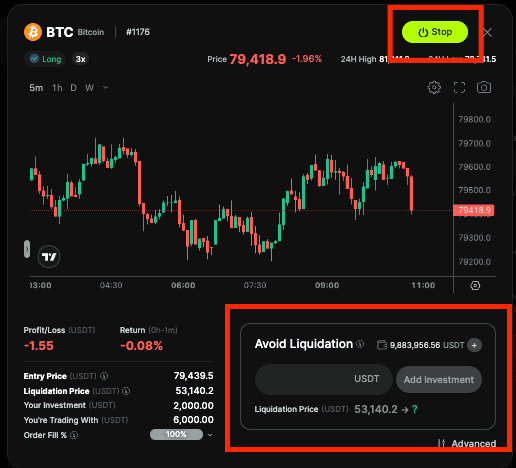
If you see "Avoid Liquidation," — act fast
This panel appears inside your trade when the price is getting close to your liquidation level. You have two options: Add Investment to top up and push the liquidation price further away, or tap Stop to close the trade and accept current losses.
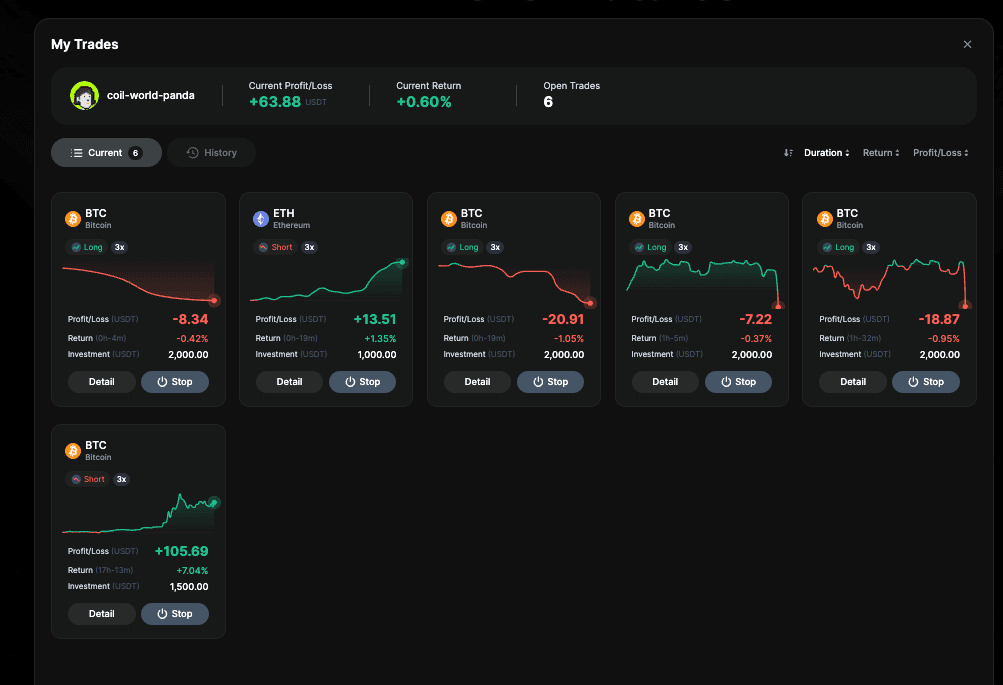
View all trades from "My Trades"
Tap View All on the My Trades bar to open the full trades panel. The Current tab shows all open positions. The History tab shows every trade you've closed. Sort trades by Duration, Return, or Profit/Loss using the controls on the top right. Tap Detail to open a trade, or Stop to close it immediately.

Start with the demo — no real funds needed — or go straight in from $10.


